eBay requires at least one photo per listing, and that photo must be at least 500 pixels on its longest side. The practical target is much higher: eBay recommends about 1600 x 1600 pixels, accepts files up to 12MB, and bans borders, added text, logos and watermarks. Photos that follow these rules display well, stay eligible for search, and show the buyer exactly what they are buying. That last point also matters for fraud prevention, because a listing with clear photos of an item's condition gives you evidence when a buyer later claims the item was not as described. This guide sets out the rules, the settings that produce sharp images, the shot list for condition and parts, and how photos fit into a protected selling workflow.
The technical rules at a glance
The figures below come from eBay's own U.S. documentation. Where eBay's help pages and its developer documentation differ in detail, the table follows the seller-facing help page and notes the developer limit.
| Requirement | What eBay states |
|---|---|
| Minimum size | 500 x 500 pixels, and at least 500 pixels on the longest side |
| Recommended size | About 1600 x 1600 pixels |
| Maximum file size | 12MB per image |
| Accepted formats | JPEG, PNG, GIF, TIFF, BMP, WEBP, HEIC, AVIF |
| Photos per listing | At least 1, up to 24 in most categories |
| Main photo | Appears next to the title in search results |
The size, file limit, format list and 24-photo cap are stated on eBay's Adding pictures to your listings help page. The one-photo minimum at 500 pixels on the longest side is part of eBay's Picture policy.
Sellers who list through the API or bulk tools meet a few extra limits. eBay's developer documentation on managing images states that eBay Picture Services returns an error when a file exceeds 12MB, returns another when height plus width exceeds 15,000 pixels, and converts non-JPG formats to JPG on upload. The same page says multiple-variation listings are limited to 12 pictures per variation. If a bulk upload fails, those are the first limits to check.
Size and resolution: why 500 pixels is only the floor
A 500-pixel image passes the upload check, but it is the smallest image eBay accepts, not a good one. eBay's Seller Center photo guidance gives 500 x 500 as the minimum resolution and recommends at least 1600 x 1600, and it advises against blurry or pixelated images. The reason is zoom. Buyers on a desktop can enlarge a photo to inspect the item, and a photo shot at the minimum size turns soft as soon as it is enlarged.
The developer documentation adds a technical reason. eBay Picture Services downscales and compresses uploads and stores them at several sizes. According to the developer documentation, if an uploaded picture is smaller than one of the stored sizes, the upload is accepted but the quality of the stored picture is likely to be degraded. Shooting large and letting eBay scale down is therefore safer than shooting small.
A practical routine for most sellers:
- Shoot at your phone or camera's highest practical setting. eBay's SHOW MORE SELL MORE photo guide recommends the Medium or High file size setting on a camera.
- Crop so the item fills most of the frame. The same guide suggests the item should take up 80% to 90% of the frame.
- Export at about 1600 pixels on the long side. Anything much larger adds file weight without a visible gain at normal viewing sizes, and the 12MB limit is easier to stay under.
- Keep the original files. Cropped, compressed copies lose detail you may want later.
The square format is not required. A 1600 x 1200 photo is fine, because the rule concerns the longest side, not the aspect ratio. A square crop does keep the item centered in search thumbnails, which is why many sellers standardize on it.
What eBay prohibits in photos
Most listing problems with images come from what was added to the photo rather than how it was taken. eBay's Picture policy prohibits:
- Photos that do not accurately represent the item.
- Placeholder images.
- Stock photos for used, damaged or defective items.
- Photos with added borders.
- Photos with added text, artwork or marketing material.
- Watermarks of any type, including those used to show ownership.
The seller-facing help page repeats the point about graphics: it says not to add badges, logos, copyright notices or watermarks, and says catalog or stock photos cannot be used for used items. eBay's Seller Center guidance adds a practical consequence, warning that text, artwork, logos or watermarks can keep images from appearing in third-party search results. Since shopping engines and image search send additional traffic, a clean image has a reach advantage as well as a compliance one.
Borders deserve a note. The SHOW MORE SELL MORE guide prohibits borders but allows a narrow exception: a natural border created when you photograph a square or rectangular item against a neutral backdrop is not an added border. In practice, shoot against a plain surface and crop in the camera or editor, rather than adding a frame in software.
The stock photo rule is the one that catches parts and electronics sellers most often. A manufacturer image is tempting when you list a used part, but for used items eBay requires your own photo of the actual item. That also serves you: a photo of the exact unit you ship is the clearest record of its condition at the time of listing.
How many photos, and which shots
Every listing needs at least one photo, and the first photo appears beside the title in search results, so it carries the most weight. Sellers can add up to 24 pictures per listing in most categories, and the Seller Center page recommends using that room, making the first photo the best shot, with the item centered and fully visible, and photographing each item individually.
A useful sequence for most used goods:
- Main shot: the whole item, centered, on a plain background. White is always a safe choice according to eBay's Seller Center guidance; eBay's photo guide suggests a solid dark backdrop for white items.
- Back and sides: every angle a buyer would want to turn the item to see.
- Labels, tags and markings: brand tags, serial plates, size and content tags.
- Scale shot: if the size is not obvious, place a coin or ruler next to the item, as eBay's help page advises.
- Flaws: clear close-ups of scratches, wear, dents or blemishes.
- Accessories and contents: everything included in the sale, laid out together.
The flaw close-ups are the shots sellers skip most often and need most. eBay's help page says that showing imperfections sets buyer expectations and helps prevent returns. A buyer who has seen the scratch in the listing has a hard time claiming the item arrived scratched.
Optimizing images for sharpness, zoom and speed
Optimization starts at the camera, not in editing software. The following points come from eBay's help page, Seller Center guidance and photo guide.
- Steady the camera. Use a tripod, or set the phone on a solid object and use the timer, so there is no motion blur.
- Use natural light and skip the flash. Seller Center advises natural lighting and avoiding flash or filters. Overhead lighting and flash both create glare on glossy surfaces.
- Use macro mode for small details. The photo guide suggests macro mode for close-ups of labels, jewelry and similar items.
- Choose the background deliberately. Seller Center describes three options: plain white, solid studio-style colors that suit light items or make colors stand out, and AI-generated background scenes, which it recommends for only a few photos so the background does not distract from the item.
- Fill the frame. An item at 80% to 90% of the frame leaves little wasted resolution.
On file size, a common seller rule of thumb is JPEG at high quality, around 1600 pixels on the long side, which keeps files well under the 12MB cap and loads quickly on mobile. That is a working convention rather than an eBay rule, so treat it as a starting point. eBay also offers Gallery Plus, which, per its help page, adds magnification and an Enlarge link for eligible listings.
Photos work together with the rest of the listing. A sharp image on a listing with a weak title or missing item specifics still underperforms. Our guides on optimizing eBay listings for visibility gaps, eBay item specifics and eBay SEO signals cover those pieces, and the free listing analyzer scores a finished listing so you can see what is still missing after the photos are done.
Photographing appliance parts so buyers can verify fit
Appliance parts have a different buyer problem from clothing or collectibles. The buyer is not judging style; the buyer is checking whether a part fits a specific model. Photos therefore have to answer a compatibility question.
For each part, include:
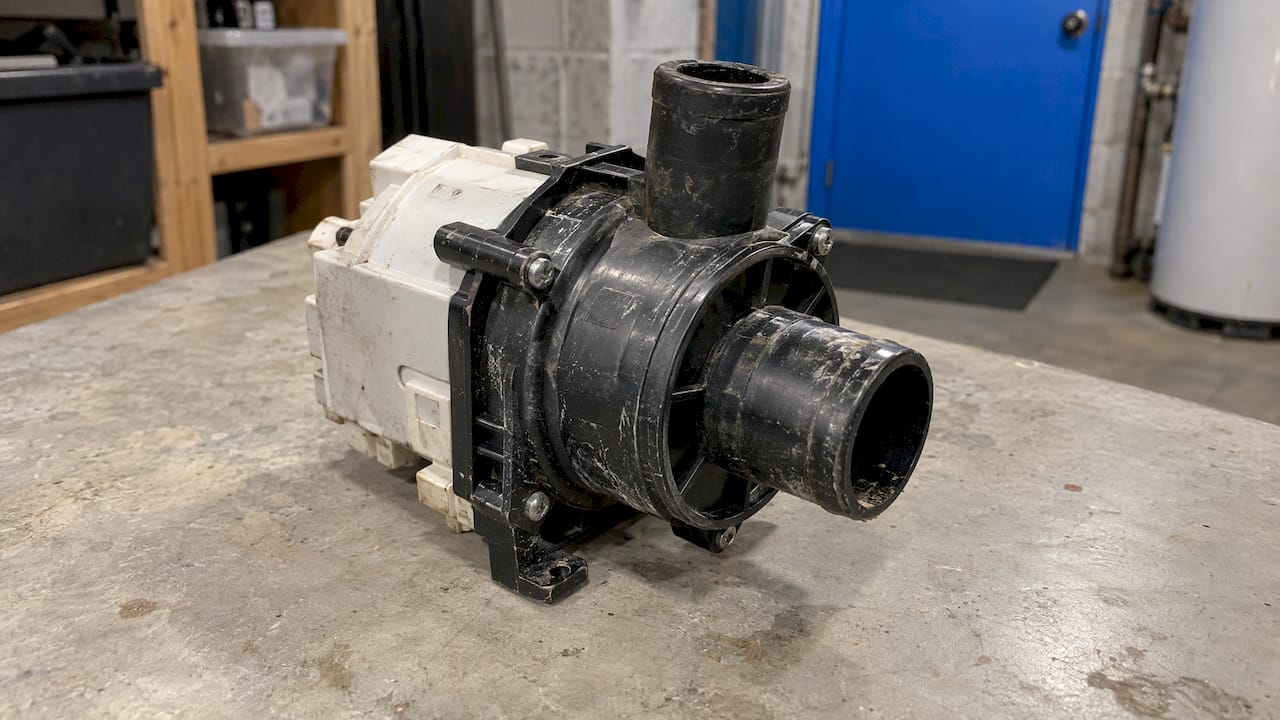
- The part number label or stamp, photographed close enough that every character is legible. If the number is worn, say so in the description and show the wear.
- Connectors, terminals and mounting points, from the angle a buyer would compare with the old part.
- A scale reference, such as a ruler beside the part, since many parts look alike at different sizes.
- Damage or wear, photographed up close, so a cracked housing or worn contact is never a surprise.
- A clean part on a plain background. Grease and dust hide the markings buyers look for.
The photos make a claim, and the title and item specifics must back it up: the part number, the models it fits and the condition. A mismatch between a photo and the listed compatibility is a common route to "not as described" returns. Our guide to verifying appliance part fit by model number explains how to build the compatibility side of the listing, and the free title builder helps you work out which keywords sold items used in their titles.
Photos as evidence when a buyer disputes an item
eBay sellers cannot leave negative feedback for buyers, and that gap is why return fraud and false claims are such a persistent concern. When a buyer says an item was damaged, defective or different from the listing, the first thing you have is the listing itself. Photos taken before the sale, showing the item and its flaws from several angles, are the most direct evidence of what you described.
Two habits strengthen that record:
- Photograph each unit individually, as Seller Center recommends, rather than reusing one image for several items. Individual photos let you show that the item sold is the item that shipped.
- Photograph the packed item before it leaves, especially for parts and electronics, and keep the files with the order record.
Photos protect one listing. The pattern across many orders is a separate matter, and that is where a buyer blacklist applies. If a buyer repeatedly files false claims, you can report that buyer with your evidence to the SafeBay community, where the report is reviewed and shared. The community blacklist syncs to eBay's Blocked Buyers list through a free Chrome extension, so the buyer is blocked on your account. The buyer status check and the report form cover the lookup and the reporting steps.
Where SafeBay fits
Once the photos are ready, the rest of the listing still has to be written, and the buyer side still has to be protected. SafeBay Companion is a Chrome extension that works on eBay's own pages: it generates and proofreads listings with AI, and the same extension syncs the community buyer blacklist to your eBay Blocked Buyers list and shows real-time buyer risk alerts. The AI listing generator produces the title, item specifics and price for a listing, so the photos you have taken are paired with a complete description.
The Free plan costs $0 per month and includes basic features with limited AI usage. Paid plans are Basic at $9.95 per month, Pro at $59.95 per month and Enterprise at $599.95 per month, with higher limits and advanced features. You can see the plans on the SafeBay pricing page and install the extension from the SafeBay Companion page.
Our view on photos, listings and risk
Photos are the part of a listing that sellers control completely, and they are also the part that buyers and eBay's systems read first. We think of the photo set as two documents at once: a sales page and a record of what was sold.
That dual role is why we build our tools around the whole workflow rather than one step. A seller who has good photos still needs a title, item specifics and a price that match them, which is what our AI listing tools are designed to produce inside eBay's own listing flow. And a seller with a complete listing still has no way to leave negative feedback for a buyer who abuses returns, which is the gap our community blacklist addresses, with reporting backed by evidence, a review step, separate private and public blocks, and an appeals process so that the record stays accountable.
Our advice is to treat the photo rules as the baseline and the condition close-ups as the real work. Shoot at 1600 pixels or more, keep the images clean of text and watermarks, show every flaw, and keep your original files. Then let the rest of the process, from the listing text to buyer screening, run in one place.
Mike Brydko
Frequently asked questions
What is the recommended image size for eBay listings?
eBay recommends images of about 1600 x 1600 pixels. The minimum is 500 x 500 pixels, with at least one photo 500 pixels on its longest side. Larger images keep zoom sharp, and eBay accepts files up to 12MB each.
Does eBay require square photos or a white background?
Neither is required. The size rule applies to the longest side, so rectangular photos are accepted. A plain white background is, according to eBay's Seller Center guidance, always a safe choice, and solid colored backgrounds are an option for items that suit them.
Can I add a watermark or my logo to my eBay photos?
No. eBay's Picture policy prohibits watermarks of any type, including ownership attributions, as well as added borders, text, artwork and marketing material. Seller Center also warns that such additions can keep images out of third-party search results.
How many photos can I add to an eBay listing?
Every listing needs at least one, and most categories allow up to 24 at no cost. Multiple-variation listings are limited to 12 pictures per variation, and motor vehicle listings depend on the selected vehicle package.
Can I use stock photos for used items?
No. eBay's Picture policy prohibits stock photos for used, damaged or defective items. Photograph the actual item, including any flaws, so the listing matches what you ship.