An eBay listing template is a saved set of listing details that you reuse instead of rebuilding each listing from scratch. In Seller Hub you can create up to 50 of them, name them, edit them and start new listings from them. The harder part is deciding what belongs in a template and what must be rewritten for every item. This guide covers both: the mechanics, the structure that works, and the checks that keep a templated listing accurate.
What an eBay listing template is, and what it can standardize
eBay describes listing templates as reusable, built for frequent sellers who want to create listings without starting over and who want consistent information across them. In practice a template covers the parts of a listing that rarely change from one item to the next within a product line.
The fields eBay lists as required for a successful listing are photos, title, category, item specifics, condition, description, pricing, shipping (including the combined shipping policy) and settings. Per eBay's template help page, a template can hold details for these fields, so you decide how much to prefill.
A useful way to divide the work is by how often each element changes:
| Listing element | Fits in the template? | Reason |
|---|---|---|
| Shipping and handling terms | Yes | Usually identical across a product line |
| Return policy wording | Yes | Set once, applies to every listing |
| Description layout and headings | Yes | Gives buyers a consistent reading order |
| Category and base item specifics | Often | Stable if every item is the same type |
| Title | Partly | A formula can be saved, the words change each time |
| Condition and flaw notes | No | Must reflect the actual item |
| Photos | No | Used or refurbished items need photos of the actual item |
| Price | Rarely | Depends on current sold prices and condition |
The left column is the working rule: anything that describes the specific item stays outside the template, or at least is a clearly marked placeholder that you overwrite.
How to create a listing template in Seller Hub
The process is short, and eBay's help page confirms the order of steps. One condition applies: Seller Hub access requires at least one sale, so brand-new accounts may not see the same tools.
- Open Seller Hub and go to the Listings tab, then choose Listing templates.
- Select Create new template.
- Name the template so you can find it later. Names such as "Used appliance part, working" or "Sneakers, pre-owned" are more useful than "Template 1".
- Add the listing details you want saved: category, item specifics, condition, description, shipping and policies.
- Preview the template and save it.
- To use it, find the template in the list and choose Create listing from the Actions dropdown.
Templates can be revised, renamed, deleted and copied. Copying is the fastest way to build variations: duplicate a working template, change the category and the specifics, and rename it. With a 50-template ceiling, a sensible structure is one template per product family and condition grade, not one per item.
Template, draft or description template: which is which
These terms get mixed up, and they behave differently.
- Listing template: a reusable Seller Hub setup that you start new listings from.
- Draft or scheduled listing: a single unpublished listing. Seller Hub lets you save up to 5,000 drafts or scheduled listings, with a lower limit in the mobile app.
- Description template: an HTML layout that controls how the description looks. eBay's developer documentation treats these as optional user-created HTML files that set the look and feel of listings. Many third-party editors produce this kind.
If your goal is consistency and speed, the Seller Hub listing template is the practical starting point. A designed HTML layout is a separate decision, and it adds risk if it breaks on mobile or includes content eBay does not allow.
What to put inside the description
Buyers read a listing in a predictable order. They want to know what the item is, then whether it will work for them, and only after that do they check shipping, returns and risk. A description template that follows that order answers each question before the buyer has to search for it.
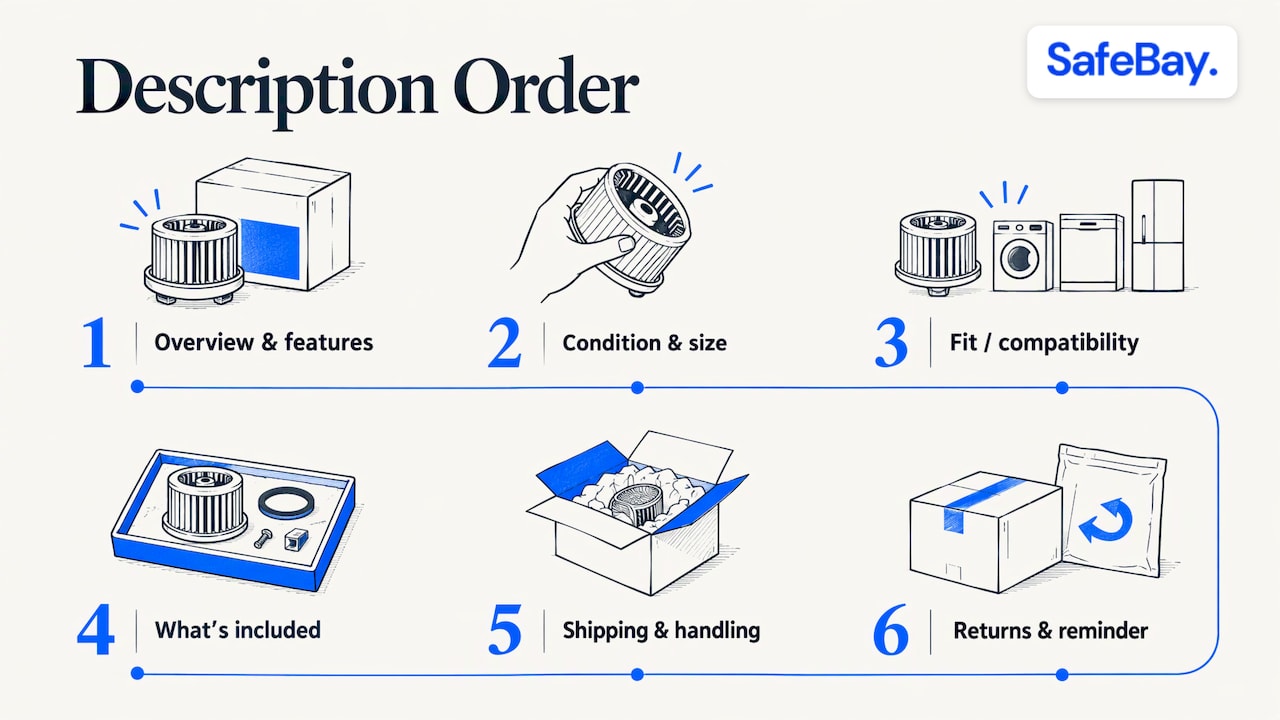
Published reseller guides converge on a similar order. One 2026 template guide proposes eight blocks: product overview, key features, condition details, size, fit or compatibility, what is included, shipping and handling notes, a return note and a final buyer reminder. That sequence suits most categories, and you can trim it.
A working eight-block structure
- Product overview. One or two sentences naming the item, brand and model. Repeat the identifiers used in the title.
- Key features. Three to six short bullets. Specifications a buyer would filter on belong here and in item specifics.
- Condition details. The stated condition, then every flaw. Mention each flaw and photograph it.
- Size, fit or compatibility. The block that prevents the most "not as described" returns.
- What is included. Accessories, manuals, hardware, packaging.
- Shipping and handling. Handling time, carrier, and any exclusions.
- Returns. The return window and who pays for return shipping, matching the policy attached to the listing.
- Buyer reminder. A one-line prompt to check the model or size block before buying.
Keep it short and scannable. A long wall of text is harder to read on a phone, and mobile browsing is where many buyers see your listing. eBay's advanced listing tool also suggests one typeface in a black 14pt font for descriptions, which is a reasonable default if you do not have a design reason to change it.
Titles and item specifics: the part templates cannot do alone
The title and item specifics decide whether the listing is found at all, so they deserve more attention than the description layout. eBay's Seller Growth Guide states that item specifics such as brand, make, model, size, color and style help shoppers discover items, and that listings appear in filtered results only when the relevant specifics are present. That guide is written for the Australian marketplace, but the filtering logic of the specifics fields is the same idea eBay's US pages describe.
Two practical consequences follow for template users:
- Save the field structure, not the values. A template can preselect the category and show the right specifics fields, but the values (model, part number, size) must be checked for each item.
- Use real identifiers. eBay's Seller Center says that adding product identifiers can help listings appear in more relevant searches, and that when an item matches the catalog, key details fill in automatically. Matching identifiers also builds buyer trust and can reduce return requests.
eBay's item description policy goes further: required specifics such as brand, UPC or MPN should not be filled with entries like "Does not apply" or "N/A" when the manufacturer has provided that information. A template that prefills a placeholder in those fields will cause problems, so leave them blank in the template and fill them per item. For a deeper walk through the fields, see our guide to eBay item specifics and required fields.
For titles, a saved formula is more useful than a saved title. Appliance parts sellers, for example, can follow a pattern of brand, part name, part number and model compatibility, as in a refrigerator control board listing that names the series it fits. If you want keywords drawn from titles that have already sold, the free eBay title builder is built for that step.
Templates for appliance parts and other fitment-sensitive items
Compatibility is where templates help most and fail most often. A part that fits one model and not its near neighbor produces a return, a dispute and sometimes a defect claim, so the compatibility block should never be copied unchanged from a previous listing.
A safer approach for parts sellers:
- Put the part number and any cross-reference numbers in the first lines of the description and in the specifics.
- List compatible models as explicit entries, one per line, not as a phrase such as "fits most models".
- State the condition in plain terms, for example whether the part was removed from a working unit, and keep it consistent with the condition selected on the listing.
- Repeat the return policy briefly at the bottom, so the buyer sees it next to the compatibility list.
The template holds the empty structure of these blocks. You fill in the part-specific lines each time, ideally from the part's label or manufacturer documentation. SafeBay's tooling also includes an appliance parts compatibility lookup, which fits this step of the workflow.
Checks before you publish a templated listing
A template saves time only if the finished listing is correct. The rules below come from eBay's own policies and apply regardless of how the listing was created.
- Condition must match everywhere. eBay's item description policy requires accurate descriptions and a selected condition that is consistent across title, description and item specifics. If a template says "new" and you list a used item, that is a policy problem, not a formatting slip.
- Describe defects and use real photos. The selling practices policy requires you to specify condition, describe flaws, and include return, shipping and transaction terms. For used, refurbished or flawed items it also calls for photos of the actual item, not a stock image.
- Check the category. Listing content has to relate to the item, and the item belongs in the right category. A copied template can carry an old category with it.
- Avoid scripts and outside links. eBay restricts active content such as JavaScript and generally does not allow links that send buyers to sites outside eBay. This matters mostly for HTML description templates from third-party editors, so confirm the current rules in eBay's policy pages.
- Read the preview on mobile. Shorter blocks and bullets survive a small screen better than dense paragraphs.
After publishing, eBay's own diagnostics can show where a listing falls short. Our walkthrough of the eBay listing quality report explains where to find it, and the seven-step guide to optimizing eBay listings covers the visibility gaps it tends to reveal.
Buyer message templates
Templates are not limited to listings. Sellers who handle many orders also benefit from short saved replies to common questions. One 2026 reseller guide recommends answering buyer messages within 24 hours and keeping brief responses ready for the usual topics: condition details, shipping timeline, size or fit, and offer negotiation.
The same rule applies as for listings: the template is a starting point, and each reply should reference the specific item and order. A reply that mentions the wrong model is worse than a slightly slower answer.
Our perspective on templates, risk and automation
We build SafeBay for eBay sellers, and the pattern we see is that templates solve the repetitive half of the work while leaving the risky half untouched. A saved layout does not tell you whether the part number is right, whether the condition wording matches the photos, or whether the buyer who just made an offer has a history of false claims.
That is why we treat listing quality and buyer risk as one workflow. Since 2008 sellers have been unable to leave negative feedback for problem buyers, so return fraud and false claims land on the seller's account with little public record. Our community blacklist lets sellers report adverse buyer behavior with evidence, and reviewed reports can sync to the eBay Blocked Buyers list through the Chrome extension.
On the listing side, our AI tools work inside eBay's own pages: they generate and proofread descriptions, suggest titles and specifics, and help with messages and feedback replies. We design them to reduce typing, not to replace a seller's check of the facts. A good template plus a quick human review of identifiers and condition is the combination we recommend.
Mike Brydko
Where SafeBay fits into a templated workflow
Seller Hub templates handle the reusable structure. SafeBay adds what sits around it: drafting the item-specific text, and protecting the account once the listing sells. The SafeBay Companion is a Chrome extension that works on eBay's pages, and the AI listing generator produces a title, item specifics and a price suggestion that you can review before publishing.
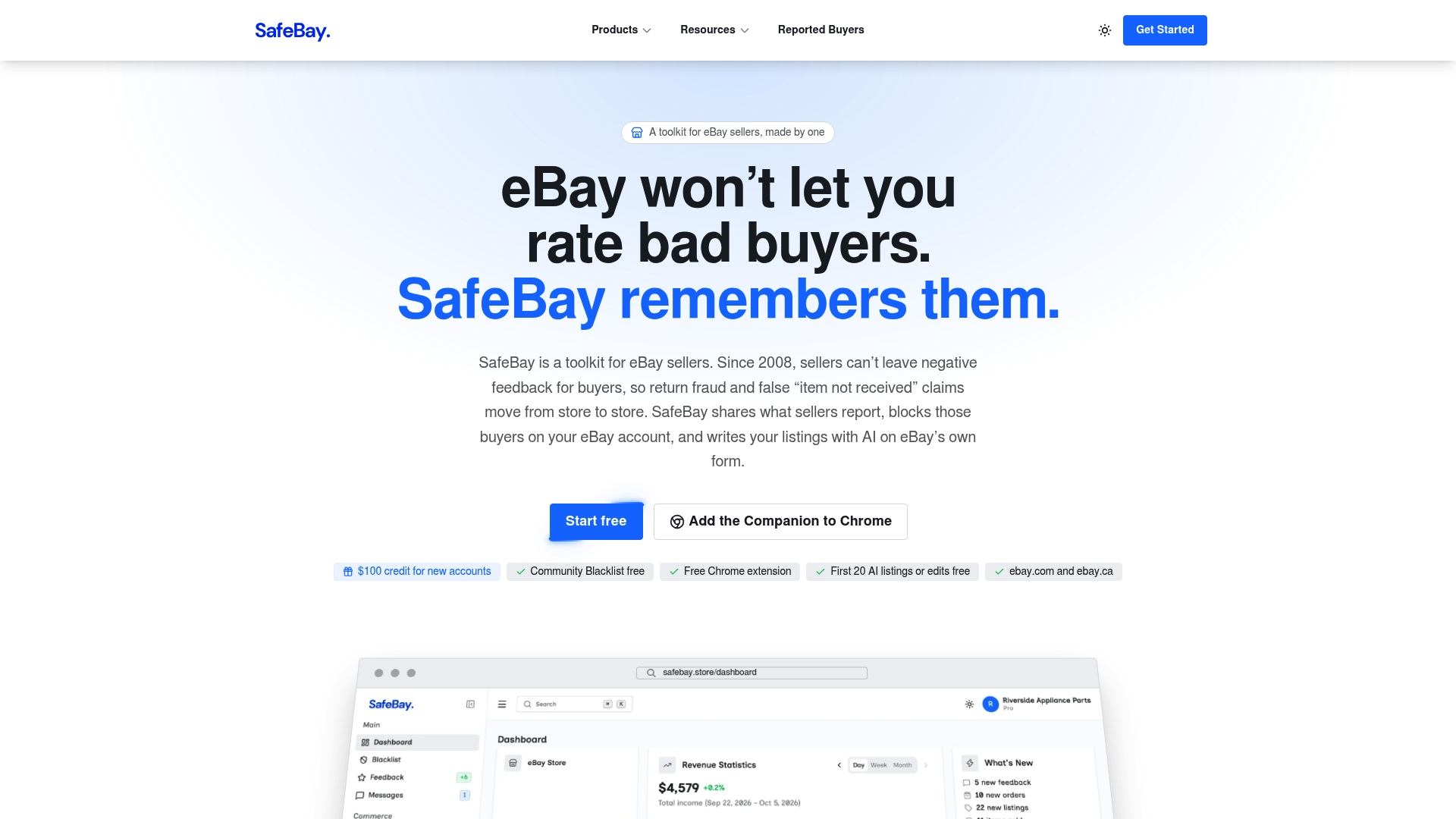
The plans, as published on the SafeBay site, are Free at $0 per month, Basic at $9.95 per month, Pro at $59.95 per month and Enterprise at $599.95 per month. The free plan covers basic features with limited AI usage, so you can try the listing tools on a few items before choosing a paid tier. If you are comparing tools more broadly, our articles on choosing an eBay bulk listing tool and which AI listing tool fits your workflow set out the criteria to use.
Fees and pricing: what a template cannot change
A template can store a price, but it cannot make that price right. Fees depend on your store plan and category. eBay's published fee table lists store plans from $0 per month upward, and main-category final value fees of 13.25% to 15% plus $0.40 without a store, with lower percentages for sellers with a store, as of March 2024. Fee schedules change, so check eBay's current US fee page before you set margins.
For a method of setting prices from sold data and fees, see our guide to eBay pricing strategy. Treat the price field in a template as a default to overwrite, not a fixed value.
A practical setup in five templates
Most sellers do not need all 50 slots. A compact set might look like this:
- Used, working, standard shipping. The default for pre-owned items with a stated condition.
- Used, for parts or not working. Different condition wording, a stricter flaw block and, where relevant, a clear note that the item is not functional.
- New, in original packaging. Shorter description, identifiers prominent.
- Bulky or heavy items. Handling time and freight notes included.
- Multi-quantity or variation listings. Variation attributes structured per option.
Name each one for its condition and shipping logic, and review the set every quarter so outdated policy wording does not linger.
FAQ
How many eBay listing templates can I create?
eBay allows up to 50 listing templates in Seller Hub. You can edit, rename, copy and delete them, so a copy of a good template is the easiest way to build a variation. Review the set periodically to stay under the limit.
How do I make a listing from a template?
Open Listing templates in Seller Hub, find the template you want, and choose Create listing from the Actions dropdown. The new listing opens with the saved details already filled in. Check the title, condition, specifics and photos before you publish.
Can I use an HTML description template?
Yes, eBay supports description templates written in HTML, and many sellers use third-party editors to produce them. Keep the layout simple, avoid scripts and outside links, and preview it on a phone. Seller Hub's built-in templates are the lower-risk option if you do not need custom design.
What should never be saved in a template?
Anything that describes the individual item: condition notes, flaws, photos, part numbers, compatible models and, usually, the price. Required specifics such as brand, UPC or MPN should also stay blank, because placeholder entries like "N/A" conflict with eBay's item description policy when the manufacturer provides that data.
Do templates improve search visibility?
A template does not rank a listing by itself. Visibility depends mostly on the title, the category and complete item specifics, which eBay says affect whether a listing appears in filtered results. A template helps because it keeps those fields consistently filled, provided you verify the values each time.
Sources
- Selling templates | eBay
- Seller Hub: Your business control center | eBay
- Description template | eBay Developers Program
- The advanced listing tool | eBay
- Seller Growth Guide, June 2024 | eBay
- Listing best practices | eBay Seller Center
- Item description policy | eBay
- Selling practices policy | eBay
- eBay business fees | eBay