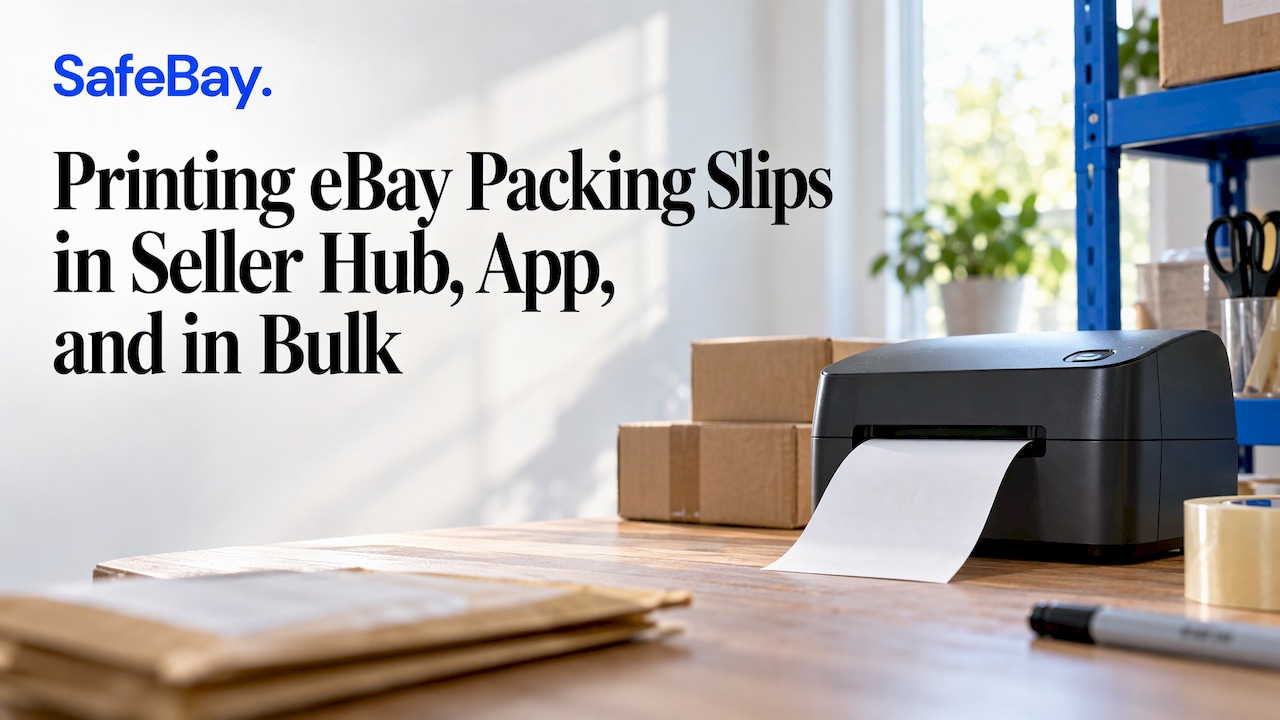
You print an eBay packing slip from the order itself: in Seller Hub, open Orders, select the three dots next to the order and choose Print packing slip and more. In My eBay, open the order details and select Print packing slip. In the eBay app, open the order, go to Manage shipping and use the three dots. The slip is a list of what belongs in the box, so the useful habit is to print it at the moment you pick the item, and to check the order for risk before the item goes into the box. That second step is where we think sellers lose the most money, and it is why this guide ends with a short pre-shipment routine.
What an eBay packing slip is and whether you need one
eBay's help page describes a packing slip as a detailed list of what's included in each order. The same page lists three printable documents for each sale: the order receipt, which shows the full cost the buyer paid at checkout, the packing slip, and the address label, which can carry your return address. They are separate documents with separate jobs, and mixing them up is a common source of confusion for new sellers.
- Packing slip: goes inside the parcel. It lists the items, quantities and order details.
- Order receipt: shows what the buyer paid, which matters if the buyer wants a record of the total including shipping and tax.
- Shipping label: goes on the outside. It carries the carrier barcode and addresses.
Is a slip mandatory? No. One seller-written guide reports that eBay does not require packing slips and tracks shipments through carrier tracking numbers. That guide lists the reasons sellers include one anyway: a professional impression, SKU and warehouse organization, order picking by employees, customs identification on international parcels, and orders with many small items. A packing guide from PostageMaker makes the same point from the other side: the slip works as a checklist before you seal the box and lets the recipient confirm that everything arrived or spot what is missing or damaged.
For a seller with a few orders a week, the slip is optional. For a seller who ships multi-item orders, parts with similar part numbers or variations such as size and color, it is the cheapest quality-control step available.
Print a packing slip from Seller Hub
Seller Hub is eBay's seller dashboard, and it is the route most active sellers use. According to eBay's U.S. help page, the steps are:
- Sign in and open Seller Hub, then go to the Orders tab.
- Find the order and select the three dots next to it.
- Choose Print packing slip and more.
- In the window that opens, choose the documents you want and print.
You can reach the same option from the Manage shipping labels page, where eBay also places a Print packing slip choice. If you bought the label inside eBay, that page is the one you will land on after purchase, so the slip is one click away at the moment you are already at the printer.
Which Orders tab section to use
eBay's Seller Hub guide describes the Orders tab as divided into Awaiting shipment, Awaiting payment, Paid and shipped, Archived and All orders. For slips, Awaiting shipment is the working queue: everything in it still needs to be picked, packed and labeled. The same guide notes that you can search shipping labels by order number, tracking number or buyer username, and that you can void or reprint a label at no extra cost within five days of purchase. That search is useful when a slip is lost or a buyer asks about one order out of many.
Print a packing slip from My eBay
Sellers who still use My eBay rather than Seller Hub can follow eBay's help instructions: go to Orders, select View order details on the order, then select Print packing slip. This route is slower for more than a handful of orders because it opens one order at a time, which is why most sellers move to Seller Hub once volume grows.
Print a packing slip without buying a label
This is the question behind several of the top results for this topic, and the answer is yes. Sellers who ship through a carrier outside eBay, hand deliver, or buy postage elsewhere still need a slip. An eBay community reply describes printing from the Seller Hub Orders page by selecting the print packing slip and more option in the actions menu, with no label purchase first. The route is the same as above: Orders, find the order, open the actions menu, print.
Because eBay changes the layout of these screens from time to time, the menu wording may differ slightly from what you see. If you cannot find the option, check the Orders page first, then the order details page, since both are places eBay documents for slip printing.
Print a packing slip from the eBay app
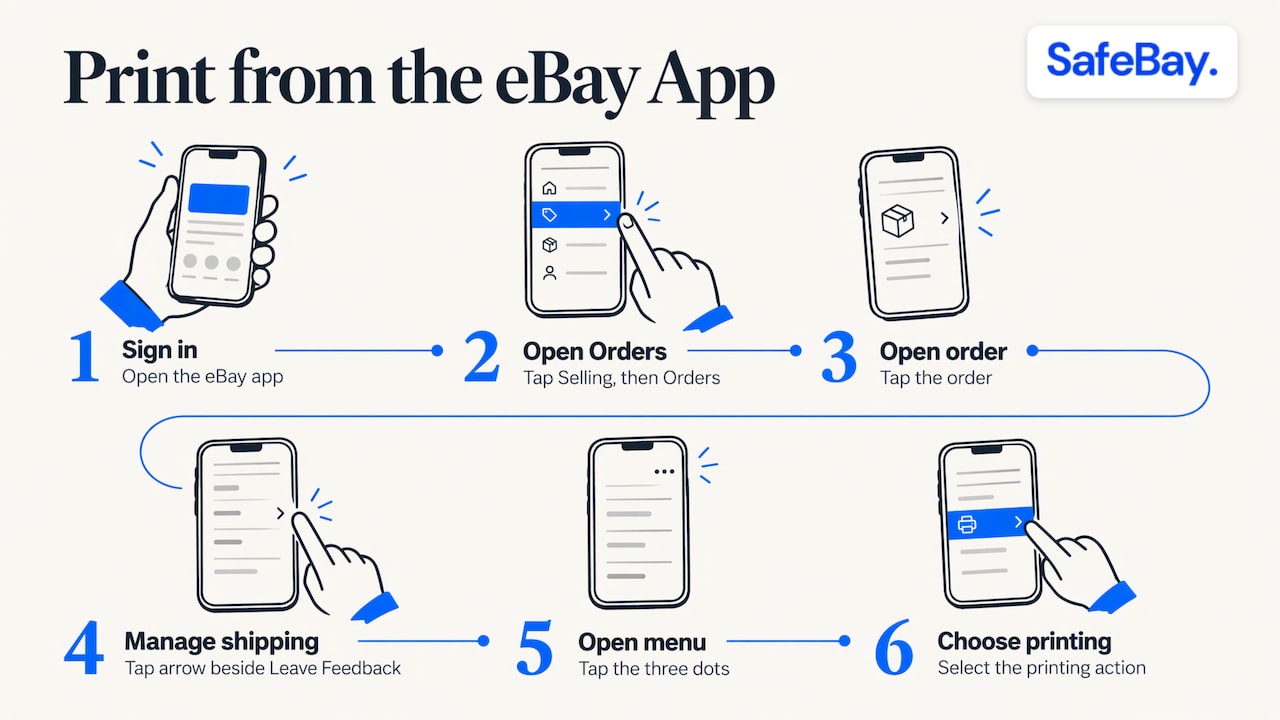
eBay's help page also covers mobile. Sign in to the eBay app, tap Selling, then Orders, and tap the order. Tap the arrow to the right of Leave Feedback, choose Manage shipping, and tap the three dots to select the action. The page says you can print packing slips, find a drop-off location and view or save QR codes from the app. A QR code lets you ship without a printer at participating carrier locations, which suits low-volume sellers, but it does not give you a slip for the box.
If you prefer to run your store from a phone, SafeBay has apps for iPhone and Android built around the same idea of managing your eBay store on the go.
Print packing slips for several orders at once
Printing one slip at a time stops making sense around the point where you pack a dozen orders in a session. eBay's help page gives the bulk route: in Seller Hub, open the Orders tab, check the box next to each order, select the Shipping button at the top, then choose Print packing slip and more.
A workable batch routine looks like this:
- Filter the Awaiting shipment list so you only see orders you are ready to pack.
- Select the orders and print all slips in one run.
- Walk your shelves in the printed order, pulling each item and matching it to its slip.
- Buy and print labels for the same group.
- Seal each box with its slip inside and its label outside, then scan or hand off the batch.
The batch approach reduces the main packing error, which is a slip in one box and the label of a different order on another.
What an eBay pick list is
A pick list is a single sheet that tells you which items to pull from your shelves for several orders, rather than a document that goes in the box. In an eBay News & Updates post about the order details page, eBay said sellers can print pick lists from one place in Seller Hub alongside packing slips, order receipts, coupons and address labels. The post was published on eBay's Australian community, so confirm in your own Seller Hub that the option appears in your U.S. account. A pick list helps most when you stock many SKUs, because it lets you collect everything in one pass instead of walking the shelves once per order.
What belongs on the slip
A slip is only as useful as its contents. A Dropizon guide to parcel paperwork recommends including:
- your business or trading name as it appears on eBay,
- the eBay order number and order date,
- the buyer's name and delivery address,
- each item with its quantity and variation, such as size or color,
- a note of anything shipped separately,
- how to reach you through eBay messages, and
- return instructions.
The guide says prices are optional and can be left off when the parcel is a gift. Reselling Revealed makes a related point: buyers sometimes ask that no packing slip or invoice be included for gift purchases, and honoring that request is simple when you print the slip separately from the order receipt.
If you sell parts, add the part number or your custom label (SKU) to the item line. Sellers report that Seller Hub offers a customize option that can include the custom label, according to FitMyPage's guide. For appliance parts, where two components can look identical and differ by one digit, a visible part number on the slip lets the buyer match what arrived against what they ordered, and lets you match it against the shelf label while packing.
Printer and paper settings
Most slips print on standard letter paper, and that is the least troublesome setup. If you use a 4x6 thermal printer for labels and want slips on the same roll, the FitMyPage guide notes that eBay lists 4x6 as a size option for shipping labels, but its help does not describe a 4x6 size for packing slips. For that setup it recommends printing the PDF at Actual Size or 100% rather than Fit to page, and letting long orders run onto an extra page instead of shrinking the text below 7 pt. Small text on a slip defeats its purpose, because the person unpacking the box has to read part numbers and quantities.
If a slip prints too large on long orders, eBay community members have pointed out that the feedback link in the packing slip pop-up goes straight to the product developers. Sellers whose businesses are affected by the format can use it.
Why a slip is not enough: check the buyer before you pack
A slip answers one question: what goes in the box. It does not answer the question that costs sellers real money: should this order go out at all? eBay has not allowed sellers to leave negative feedback for buyers since 2008, so a buyer who files false item-not-received claims or returns a different item can do it again on another seller's listing, and the next seller has no visible warning.
The cheapest moment to catch a problem is the moment you print the slip, because that is when you are looking at the buyer's name and address anyway. A short routine fits into the same step:
- Read the order for mismatches: a shipping address that differs sharply from the buyer's location, a rush request, or a message asking you to ship outside eBay. Our guide to buyer red flags lists twelve signs to check before shipping.
- Look the buyer up on SafeBay's buyer status page, which shows the risk record the seller community has built.
- For higher-value or high-risk items, record condition and serial numbers on the slip copy you keep, so a later claim has evidence behind it.
- If a dispute does come, our seller response guide for item not as described claims covers how to answer it.
A slip you keep a copy of, with part numbers and condition notes, becomes part of that evidence. That is a better use of the document than a decorative page tucked into the box.
Common problems with packing slips
The option is missing. Look under the three-dot menu on the Orders page rather than on the shipping label page. If the label page is the only place you looked, the slip option may sit elsewhere in your view.
The slip will not print. Sellers have reported periods when eBay's slip printing worked intermittently. In those cases, the bulk labels page and its pick list can serve as a stand-in until the slip works again. Try a different browser or clear the cache before assuming the problem is your printer.
The slip shows prices you do not want shown. Print the slip without prices where eBay offers that choice, or send the order receipt separately only to buyers who ask for it.
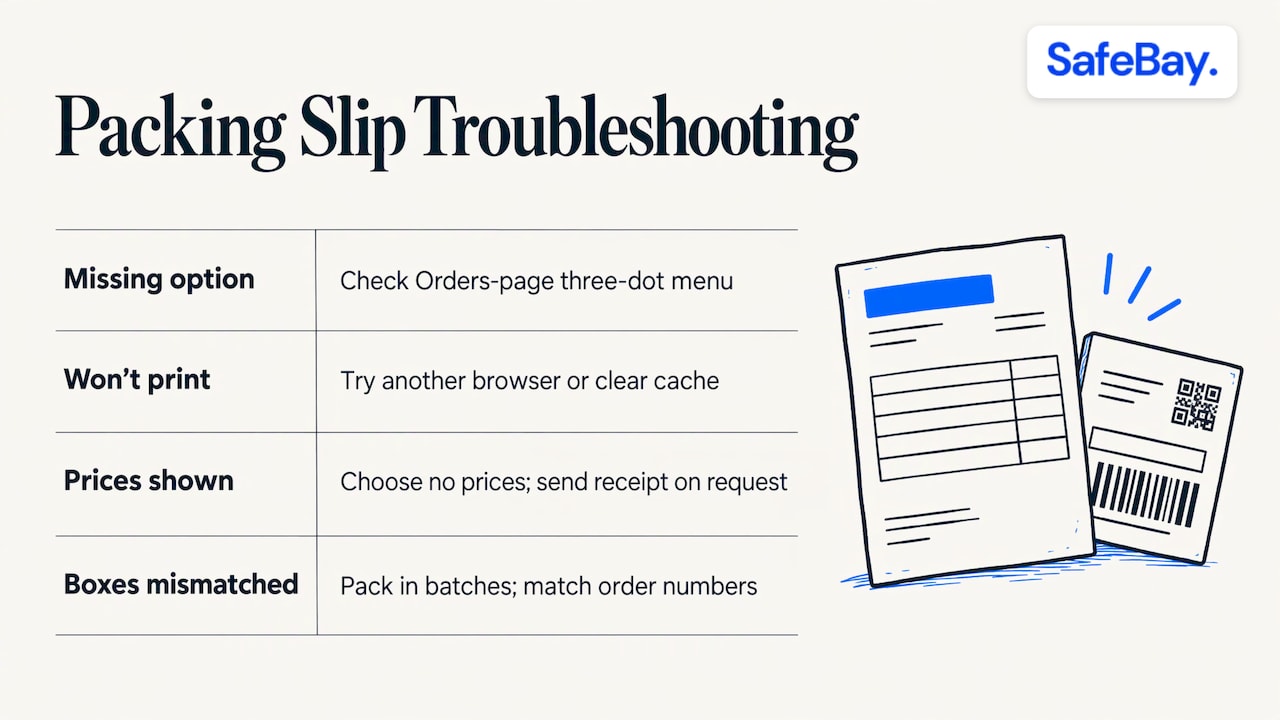
The slip and the label ended up in different boxes. Print and pack in batches of a size you can check, and match the order number on the slip to the label before sealing.
Our view on packing slips
Most guides treat the packing slip as paperwork. We treat it as the last checkpoint in your fulfillment workflow, and that changes where you spend your attention.
When you print a slip, you already hold the order number, the item, the quantity and the buyer's details. That is the right moment to ask whether the order is safe to ship. eBay sellers cannot leave negative feedback for buyers, and we built SafeBay because that gap leaves sellers exposed to repeat return fraud and false claims. Sellers report problem buyers with evidence, the reports are reviewed and shared with the community, and the SafeBay Companion Chrome extension syncs the result to your eBay Blocked Buyers list, so a flagged buyer is blocked on your account.
We separate private and public blocks, support appeals, and keep the reasons and dates for each listing, so the system stays accountable. A seller who prints the slip, checks the buyer and then packs works with the full picture, not with half of it.
Mike Brydko
Protect the orders you pack
SafeBay is a toolkit for eBay sellers that combines a community-reviewed buyer blacklist with real-time buyer risk alerts and automatic syncing to eBay's Blocked Buyers list through the SafeBay Companion Chrome extension. The same account includes AI listing generation and proofreading, auto-relisting of ended items, automated messaging and feedback replies, order management tools and sales analytics.
The Free plan costs $0 per month and covers basic features with limited AI usage. Basic is $9.95 per month, Pro is $59.95 per month and Enterprise is $599.95 per month, with higher limits and advanced features at each step. You can compare them on the SafeBay plans page. If you want to see your order flow by day, week, month and state before deciding, the orders dashboard shows revenue statistics from the same account, and our free seller tools are open without a paid plan. If a buyer has already cost you a return you should not have had to accept, you can report the buyer with evidence.
A packing routine that holds up
Putting the pieces together, a routine for each shipping session looks like this:
- Open Seller Hub, go to Orders and Awaiting shipment.
- Review each order for the red flags above and check the buyer status.
- Select the orders you will ship, print packing slips (and a pick list if you have many SKUs).
- Pull items, compare part numbers or variations to the slip, and note the condition for valuable goods.
- Buy labels, match each label to its slip and seal the box.
- Keep a copy of the slip data for the dispute window.
This takes minutes per batch, and it protects against two different losses: shipping the wrong item, and shipping the right item to the wrong buyer.
FAQ
Should I print a packing slip for every eBay order?
Not required by eBay, which tracks shipments through carrier tracking numbers. A slip is still worth printing for orders with several items, variations or part numbers, because it works as a packing checklist and helps the buyer confirm that everything arrived. For a single, simple item, many sellers skip it to save paper.
Can I reprint an eBay packing slip?
Yes. Return to the order in Seller Hub or My eBay and choose the print packing slip option again. Slips are generated from the order, so reprinting does not need a new label. If you need to reprint a label instead, eBay's Seller Hub guide says voiding or reprinting is free within five days of purchase.
How do I print packing slips for many orders at once?
In Seller Hub, open the Orders tab and check the box next to each order. Select the Shipping button at the top, then choose Print packing slip and more. Print the batch, pick the items in order and match each slip to its label before you seal the box.
What is the difference between a packing slip and a pick list?
A packing slip goes inside one parcel and lists what that order contains. A pick list is a working sheet for you, covering several orders so you can collect items from your shelves in one pass. eBay says both can be printed from Seller Hub.
Can I print a packing slip from my phone?
Yes. In the eBay app, tap Selling, then Orders, open the order, tap Manage shipping and use the three dots to choose the action. eBay's help page says you can print packing slips from the app, along with finding a drop-off location and viewing QR codes.
Sources
- Printing and canceling shipping labels | eBay
- Manage your sales using Seller Hub | eBay
- A new look for the View Order Details page | eBay News & Updates
- Printing a packing slip before printing a label | eBay Community
- What Is a Packing Slip and Does Your Package Need One? | PostageMaker
- Should I Include Packing Slips In eBay Orders? | Reselling Revealed
- Packing slip and invoice: what goes in an eBay parcel | Dropizon
- eBay 4x6 Packing Slip Maker for Thermal Printers | FitMyPage